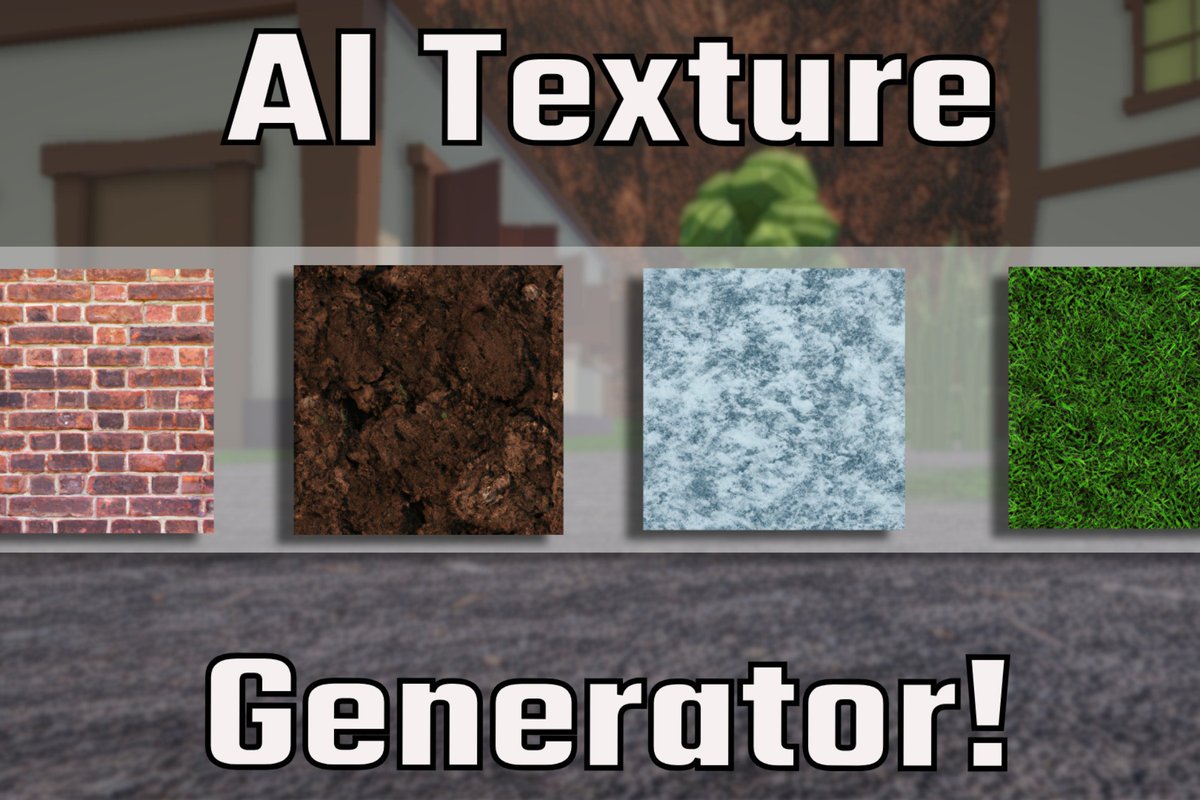
Getting your Minecraft world to truly feel yours often means going beyond the vanilla blocks. Maybe you dream of a hyper-realistic forest, a whimsical candy-land, or a gritty cyberpunk cityscape. Achieving that unique aesthetic used to mean hours of painstaking pixel art or settling for pre-made packs. But today, a revolution is underway, bringing powerful new Types of Minecraft Texture Generators (Online, AI, Software) right to your fingertips.
These tools range from simple browser-based editors to advanced AI systems and comprehensive design software, each offering a distinct path to custom textures. The question isn't if you can create unique textures anymore, but which tool is the best fit for your vision, skill level, and patience.
At a Glance: Your Guide to Minecraft Texture Generators
- Online Generators: Great for quick edits, simple changes, and beginners. No downloads, immediate results, but often limited features and lower resolution.
- AI-Powered Generators: The newest frontier, using artificial intelligence to create high-quality, diverse textures from text prompts in seconds. Excellent for speed, variety, and for those without traditional art skills.
- Dedicated Software: For the ultimate control and professional-grade results, traditional image editors (like Photoshop, GIMP, Aseprite) or 3D modeling tools (Blockbench) offer pixel-level precision but demand significant time and skill.
- Choosing Your Tool: Consider your artistic skill, the time you have, your budget, and the desired level of realism or specificity.
- The Future is Hybrid: Many creators combine AI-generated bases with manual refinement in software for the best of both worlds.
Why Even Bother with Custom Textures? Beyond the Vanilla Look
Let's be honest: Minecraft's default textures are iconic, but they're also a blank canvas. For many players, server owners, content creators, and even game developers, the desire to personalize that canvas is strong. Custom textures aren't just about making things look different; they redefine the feel of your world. They can set the mood for an adventure map, enhance immersion for role-playing servers, or simply reflect your unique artistic taste in a survival build.
Imagine a rustic cabin built with weathered stone bricks, polished wood planks, and glowing redstone ore that truly sparkles. These aren't just details; they're narrative elements that elevate your entire Minecraft experience.
The Evolving Landscape of Minecraft Texture Creation
Not long ago, creating custom Minecraft textures was an almost exclusive club. You needed to understand pixel art, graphic design software, and the nuances of Minecraft's asset structure. This meant a steep learning curve and a significant time investment.
Today, the landscape is far more democratic. We've moved from entirely manual, pixel-by-pixel artistry to a spectrum of tools that cater to every skill level and need. This evolution has opened the door for anyone to generate custom Minecraft textures and bring their creative visions to life, whether they're seasoned artists or complete novices.
Let's break down the main types of generators available.
Type 1: Online Texture Generators (The Quick & Easy Path)
Think of online texture generators as your quick-fix toolkit. These are browser-based platforms that let you modify existing textures or generate simple new ones without needing to download any software. They're often intuitive, relying on sliders, color pickers, and basic filters.
What They Are:
These websites typically offer a streamlined interface where you can upload a base image, tweak parameters like hue, saturation, contrast, or apply simple effects. Some allow you to combine different elements from pre-existing libraries. They are designed for accessibility and speed, focusing on simple, immediate results.
How They Work (Simplified):
You visit a website, often select a block type (e.g., "dirt," "cobblestone"), and then use on-screen controls to adjust colors, apply basic noise or pattern overlays, and sometimes preview the texture tiling. Once satisfied, you download the resulting PNG file.
Pros:
- Accessibility: No software downloads or installations needed; works directly in your web browser.
- Ease of Use: Generally very user-friendly with intuitive interfaces, perfect for beginners.
- Speed: Get results in minutes for simple texture modifications.
- Cost-Effective: Many are free to use, making them ideal for casual experimentation.
Cons: - Limited Features: Lack the granular control and advanced capabilities of dedicated software.
- Lower Quality/Resolution: Output might not always be high-resolution or professionally polished.
- Dependency on Internet: Requires an active internet connection to function.
- Fewer Style Options: Often restricted to basic edits or a narrow range of aesthetic presets.
When to Use Them:
If you're looking to make minor adjustments to an existing texture pack, quickly test a color palette for a block, or generate a simple, stylized texture without any prior design experience, online generators are a great starting point. They're excellent for beginners to dip their toes into texture creation without commitment.
Type 2: AI-Powered Texture Generators (The Game Changer)
This is where the magic happens for many modern creators. AI-powered texture generators leverage sophisticated artificial intelligence algorithms to create high-quality, often photorealistic or incredibly stylized, textures from simple text descriptions (prompts) or reference images. This technology is rapidly evolving and fundamentally changing how we approach digital art creation.
What They Are:
These tools are usually online platforms, but their backend is powered by advanced machine learning models. Instead of manually drawing pixels, you describe what you want, and the AI generates it. The underlying technology understands complex relationships between visual elements, colors, and textures, allowing it to "imagine" and create new assets.
How They Work (Simplified):
You provide a text prompt – for instance, "weathered stone bricks with moss," or "diamond ore with sparkling facets." The AI interprets this prompt, draws upon its vast training data of images, and then synthesizes a brand-new texture that matches your description. Many tools also allow you to select specific art styles (e.g., "realistic," "pixel art," "fantasy," "cyberpunk") to guide the generation further.
Key Features & Benefits of AI Generators:
The best AI texture generators offer a compelling suite of advantages that address common pain points in texture creation:
- Speed & Quality: Imagine generating a diamond ore texture with unique sparkles, weathered stone bricks, or polished wood planks in mere seconds, all while maintaining high quality. Advanced AI algorithms make this possible, dramatically accelerating the design process.
- Privacy & Security: Reputable AI tools prioritize user data. Prompts and generated textures should be private, not shared or stored publicly, and all data transmission encrypted. This means your creative ideas remain yours.
- Accessibility: Many leading AI generators are free to use, require no signup or registration, and offer unlimited design generation. This democratizes access to professional-grade tools, letting anyone generate custom Minecraft textures and instantly download their creations.
- Customization: You're not stuck with a single output. These tools typically provide multiple texture style options and allow for real-time adjustments, letting you fine-tune the results to your exact vision.
- Consistency: AI can be trained to ensure visual consistency across an entire project. With intelligent style recognition, your mossy cobblestone will seamlessly fit alongside your glowing redstone ore.
- Ease of Use: With intuitive interfaces, these generators require no advanced design skills. If you can type a description, you can create a texture.
- Output: They deliver high-resolution textures, typically exportable in standard formats like PNG and JPEG, suitable for direct integration into Minecraft or further editing.
- Ethical Use: Responsible AI development includes strict guidelines against generating illegal, harmful, or non-consensual content, ensuring a safe and creative environment.
Workflow for AI Texture Generation:
- Choose an Art Style: Select from a vast array of options like realistic, pixel art, fantasy, vanilla-style, modded, 3D, cyberpunk, hand-drawn, or watercolor.
- Describe Your Texture: Enter a detailed prompt. Think about block types (e.g., "oak log"), surface properties ("smooth," "rough," "cracked"), and specific design elements ("glowing runes," "metallic sheen," "mossy growth").
- Generate & Download: The AI processes your request and creates the texture. You can then download the high-resolution result for immediate use or further refinement.
Who Benefits from AI Texture Generators?
- Game Developers & Design Studios: Streamline asset creation, rapidly prototype new styles, and enhance the visual quality of their games.
- Minecraft Players: Easily create personalized texture packs for their builds, servers, or even just for personal enjoyment without needing artistic talent.
- Server Owners: Develop unique server aesthetics, offering a distinct visual identity that attracts and retains players.
- Educators & Instructors: Provide students with accessible tools for creative expression and digital art exploration.
- Entrepreneurs & Startups: Develop visual assets cost-effectively, reducing reliance on expensive graphic designers for initial concepts and iterations.
Pros: - Unprecedented Speed: Create complex textures in seconds.
- Vast Style Exploration: Experiment with an incredible range of styles you might not have the skill to draw yourself.
- High-Quality Output: Often produces textures rivaling professionally made ones.
- Low Barrier to Entry: Requires no artistic skill, just descriptive language.
- Creative Inspiration: Helps overcome creative blocks by generating novel ideas.
Cons: - Requires Good Prompting: Getting exactly what you want demands practice with prompt engineering.
- Less Granular Control: While customizable, you might not have pixel-level control compared to manual software.
- Occasional Unpredictability: AI can sometimes produce unexpected or "imperfect" results that need iteration.
When to Use Them:
If you need high-quality textures quickly, want to explore diverse art styles, or lack traditional design skills, AI-powered generators are your best friend. They're fantastic for rapid prototyping, generating base textures that can be refined later, or for creating complete packs with minimal effort. Ready to start crafting your unique aesthetic? You can generate custom Minecraft textures and transform your game today.
Type 3: Dedicated Software & Image Editors (The Professional's Workbench)
For those who demand ultimate control, pixel-perfect precision, and are willing to invest time and effort, dedicated software is the gold standard. This category includes professional image editing suites and specialized pixel art programs.
What They Are:
These are desktop applications installed on your computer, offering a full suite of tools for digital painting, photo manipulation, and graphic design. They range from general-purpose editors to highly specialized tools for pixel art or 3D model texturing.
Popular Examples:
- Adobe Photoshop: The industry standard for raster graphics, offering unparalleled tools for drawing, painting, layering, and applying complex effects.
- GIMP (GNU Image Manipulation Program): A powerful, free, and open-source alternative to Photoshop, providing many similar capabilities.
- Aseprite: A favorite among pixel artists, designed specifically for creating sprites, pixel art, and animations with features like onion skinning and custom palettes.
- Paint.NET: A simpler, free image editor for Windows, offering a good balance of features for beginners and intermediate users.
- Blockbench: A dedicated 3D model editor for Minecraft (and other voxel games). While primarily for models, it includes robust painting tools for texturing those models and even 2D texture editing capabilities.
How They Work:
You start with a blank canvas or an existing texture and use various brushes, pencils, fill tools, layers, and filters to meticulously craft your design. For pixel art, this means painting individual pixels to achieve the desired effect. For more realistic textures, you might use photographic elements, digital painting techniques, and intricate layer blending.
Pros: - Ultimate Control: Every pixel, every shade, every detail is precisely in your hands.
- Professional-Grade Results: Capable of producing the highest quality and most unique textures.
- Complex Effects: Allows for advanced techniques like normal mapping, parallax occlusion mapping (if the game engine supports it), and intricate layering.
- Custom Animations: Essential for animated block or item textures.
- Learning Opportunity: Great for developing artistic skills and understanding graphic design principles.
Cons: - Steep Learning Curve: Mastering these programs takes significant time, practice, and often formal learning.
- Time-Consuming: Creating high-quality textures manually is a very lengthy process.
- Requires Artistic Skill: A strong understanding of color theory, composition, and often pixel art fundamentals is crucial.
- Cost: Professional software like Photoshop often comes with a subscription fee (though free alternatives exist).
When to Use Them:
If you're an aspiring pixel artist, a professional game developer, or someone who wants to create a truly unique, highly detailed, and custom-animated texture pack from scratch, dedicated software is indispensable. It's also the best choice for modifying existing texture packs at a granular level or for learning the craft of digital art.
Choosing the Right Generator for Your Project: A Decision Framework
With so many options, how do you pick the right tool? Consider these criteria:
- Your Skill Level: Are you a beginner, an intermediate designer, or an experienced artist?
- Time Available: Do you need something quickly, or do you have weeks to dedicate to the project?
- Desired Quality & Specificity: Do you need something "good enough" or pixel-perfect, hyper-realistic, or highly stylized?
- Budget: Are you looking for free tools, or are you willing to invest in software subscriptions?
- Specific Style: Do you have a very particular artistic vision (e.g., hyper-realistic, 8-bit, Ghibli-esque) that requires a specific toolset?
Here's a quick comparison to help you visualize:
| Feature | Online Generators (Basic) | AI-Powered Generators | Dedicated Software (e.g., Photoshop, Aseprite) |
| :---------------- | :----------------------------- | :----------------------------- | :----------------------------------------------- |
| Ease of Use | Very High (Beginner-friendly) | High (Prompt-based) | Low (Steep learning curve) |
| Speed | High (Minutes) | Extremely High (Seconds) | Low (Hours to weeks) |
| Output Quality| Basic to Moderate | High to Very High | Highest (Professional-grade) |
| Customization | Low (Limited sliders) | Moderate (Prompt refinement, style selection) | Very High (Pixel-level, layers, effects) |
| Artistic Skill Req.| None | None (Good prompting helps) | High |
| Cost | Mostly Free | Often Free (some premium features) | Free (GIMP, Aseprite) to Subscription (Photoshop) |
| Best For | Quick edits, simple changes, beginners | Rapid prototyping, diverse styles, non-designers, high-quality base textures | Ultimate control, professional artists, complex packs, custom animations |
Beyond the Basics: Tips for Next-Level Texture Generation
No matter which tool you choose, a few universal principles can elevate your texture game:
- Master the Prompt (for AI): The better and more detailed your text prompts, the closer the AI will get to your vision. Experiment with keywords, art styles, and descriptors. Don't just say "rock"; try "granite rock, weathered, mossy, subtle cracks, photorealistic, 16x16 resolution."
- Understand Minecraft's Texture Limitations: Minecraft textures are typically square (16x16, 32x32, 64x64, 128x128, 256x256, 512x512 pixels). Ensure your generated textures tile seamlessly when placed next to each other. AI tools often handle this automatically, but manual tools require careful planning.
- Iterate and Refine: Don't expect perfection on the first try. Generate multiple variations, tweak your prompts, and make small adjustments. For software, use layers and non-destructive edits.
- Test In-Game Frequently: What looks good in an editor might look different in Minecraft's lighting and environment. Load your texture pack into the game often to see how it performs.
- Utilize Community Resources: Look for tutorials, forums, and communities dedicated to Minecraft texture pack creation. These can offer valuable insights, tips, and even ready-to-use palettes or brushes.
- Combine Tools: Many creators use a hybrid approach. They might use an AI generator to quickly create a base texture, then import it into Photoshop or Aseprite for final pixel-level touch-ups, color correction, or to add specific details that AI missed.
Common Questions About Minecraft Texture Generation
Are AI-generated textures truly "original"?
Yes, in the sense that the AI synthesizes new images based on its training data, rather than copying existing ones directly. The outputs are unique creations. However, the style might be influenced by the data it was trained on. Most reputable AI generators create new permutations, ensuring originality.
Can I use these for commercial projects?
This depends entirely on the terms of service of the specific generator you use. Many free AI tools allow commercial use, especially for non-exclusive rights. Always check the licensing agreement before incorporating generated textures into a commercial product or server.
What resolution should my textures be?
Minecraft commonly uses 16x16, 32x32, 64x64, and 128x128. Higher resolutions (like 256x256 or 512x512) are possible but demand more system resources and can lead to performance issues on lower-end machines. AI generators can often output a range of resolutions, making it easy to choose what fits your target audience.
How do I install custom textures in Minecraft?
Once you have your PNG files, you'll compile them into a .zip file (your resource pack) with a specific folder structure (e.g., assets/minecraft/textures/block/) and a pack.mcmeta file. Then, you place this .zip into your Minecraft resourcepacks folder (found via Options -> Resource Packs -> Open Pack Folder in Minecraft). Select the pack in-game, and you're good to go!
Your Next Step to a Unique Minecraft World
The world of Minecraft texture generation has never been more vibrant or accessible. Whether you're a seasoned artist or just starting your creative journey, there's a tool out there designed to empower you. From the instant gratification of online generators to the powerful, artistic assistance of AI, and the ultimate precision of dedicated software, your vision for a unique Minecraft world is within reach.
Don't let perceived lack of artistic skill hold you back. The rise of AI tools especially means that the power to create stunning visuals is democratized. Start by experimenting, find what feels right for your project, and most importantly, have fun shaping your unique corner of the blocky universe. Ready to start crafting your unique aesthetic? Generate custom Minecraft textures and transform your game today.