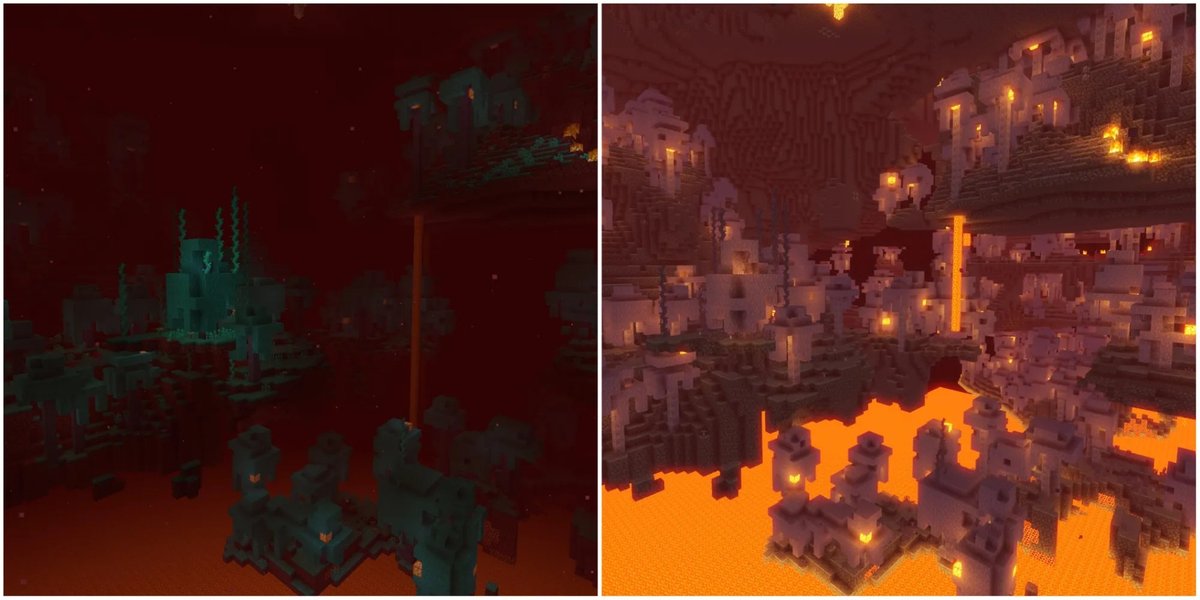
When you load up Minecraft, you're not just playing a game; you're stepping into a blocky canvas. While the vanilla look is iconic, the real magic happens when players take control, transforming everything from cobblestone to the moon with their unique vision. This guide is your definitive roadmap to integrating custom textures into Minecraft resource packs, unlocking a universe of personalized aesthetics.
Forget generic landscapes. We're about to equip you with the knowledge to craft a game that looks and feels exactly how you want it, making every pixel resonate with your personal style.
At a Glance: Key Takeaways for Custom Textures
- Resource packs let you customize nearly all visual elements in Minecraft, including textures, models, sounds, and UI.
- Java Edition packs are typically
.zipfiles and require extracting vanilla game assets as a starting point. - Bedrock Edition packs use
.mcpackfiles for simpler installation, often directly from the Marketplace. - PNG is the preferred image format due to its support for transparency, crucial for many game elements.
pack.mcmetais the brain of your resource pack, defining its name, description, and compatible Minecraft versions.- Image manipulation tools like GIMP or Photoshop are essential for editing texture files.
- Optimization is key for performance; consider resolution, compression, and texture atlases.
- Always adhere to Mojang's EULA and use lowercase filenames for compatibility.
The Heart of Customization: Why Textures Matter
Minecraft’s enduring charm lies in its simplicity, but that very simplicity also makes it a perfect foundation for radical transformation. Custom textures are the brushstrokes that turn a familiar block into a weathered brick, a plain sword into a gleaming blade, or a grumpy zombie into a quirky character. It’s not just about aesthetics; it's about making your game truly yours, enhancing immersion, and even telling a story through its visual language.
From photo-realistic landscapes to vibrant, stylized worlds, the right texture pack can redefine your entire Minecraft experience. But how do you get your own images, your own creations, into the game? That's where integration comes in.
Before You Dive In: Essential Prep Work for Texture Integration
Before you start swapping pixels, a little groundwork goes a long way. Think of it as gathering your tools and understanding your canvas.
Understanding Texture Types (The Basics You Need)
You don't need to be a graphics programmer, but knowing a few core texture concepts will help you choose and create effectively:
- Seamless Textures: These are your workhorses for blocks like dirt, stone, and wood. Designed to tile perfectly next to each other without any visible edges or breaks, they create continuous, natural-looking surfaces over large areas. Mastering seamless design is crucial for block textures.
- Albedo/Diffuse Textures: This is the most common texture type—what you probably think of as a "normal" image. It defines the base color and pattern of a surface. Most custom textures you'll integrate will start here.
- Other Texture Maps (for Advanced Users): While less common for basic packs, PBR (Physically Based Rendering) textures involve multiple maps (normal, roughness, metallic) to simulate light interaction for hyper-realism. These are more complex and require specific shaders and software, so we'll focus on traditional albedo textures for now. Procedural textures, generated by algorithms, are another advanced technique primarily for programmers.
Choosing Your Creative Toolkit
You’ll need software to create and modify your image files. Here are some reliable choices:
- Image Editors:
- Adobe Photoshop (Professional): Industry standard, powerful, but subscription-based.
- GIMP (Free & Open-Source): A fantastic, full-featured alternative that can do almost everything Photoshop can, without the cost. Highly recommended for beginners and pros alike.
- Paint.NET (Free, Windows-only): A good middle-ground option for Windows users, offering more features than basic paint programs but simpler than GIMP.
- Image Converters: Sometimes you'll find images in JPEG format. You'll need to convert them to PNG, which supports transparency – a must-have for items, glass, leaves, and many other Minecraft elements. Online converters or your image editor can handle this.
- Image Compressors/Optimizers: Tools like TinyPNG or Optimizilla can significantly reduce file sizes without noticeable quality loss, vital for pack performance.
- AI Upscalers: If you have low-resolution textures you want to use in a higher-resolution pack, AI upscalers (like Topaz Gigapixel AI or free online alternatives) can enhance resolution with surprising detail.
Quality & Cohesion: The Artistic Vision
A great resource pack isn't just a collection of cool textures; it's a cohesive artistic statement.
- Resolution Matters: Minecraft textures commonly come in resolutions like 16x16px (vanilla standard), 32x32px, 64x64px, 128x128px, 256x256px, or even 512x512px. Higher resolutions offer more detail but demand more performance. Choose a consistent resolution for your pack.
- Artistic Style: Decide on a consistent style—realistic, cartoony, pixel-art, minimalist. Mixing styles can make your pack feel disjointed.
- Image Sources: You can draw textures from scratch, use personal photography (be mindful of tiling), leverage stock photo sites, or even explore tools like Texturegen.com to create custom Minecraft textures with AI assistance.
Integrating Textures for Minecraft Java Edition: A Step-by-Step Guide
The Java Edition offers deep customization by letting you directly modify the game's core assets. This process involves a bit of file system navigation, but it's incredibly rewarding.
Step 1: Locating Minecraft's Inner Workings
Your journey begins by finding the .minecraft folder, the central hub for all your game files.
- Windows: Press
Windows Key + R, type%appdata%\.minecraft, and hit Enter. - macOS: Open Finder, press
Cmd + Shift + G, type~/Library/Application Support/minecraft, and hit Enter.
Step 2: Accessing Game Assets (The Vanilla Textures)
You need a template to work with. Minecraft stores its vanilla assets within a .jar file for each game version.
- Navigate to
.minecraft/versions/<your_version_folder>. Replace<your_version_folder>with the version you want to target (e.g.,1.20.4). - Inside, you'll find a
.jarfile (e.g.,1.20.4.jar). Copy this file to a temporary working directory (like your desktop). - Rename the copied
.jarfile to.zip(e.g.,1.20.4.zip). - Use an archive program (7-Zip, WinRAR, or your OS's built-in extractor) to extract the contents of this
.zipfile into a new folder. This folder will be the foundation of your resource pack.
Step 3: Modifying Existing Textures (Your Creative Canvas)
Now for the fun part: replacing vanilla textures with your custom designs.
- Inside your newly extracted folder, navigate to
assets/minecraft/textures. - You'll see subfolders like
blocks,items,entity(for mobs),gui(for user interface), etc. Explore these to find the textures you want to change. For example,assets/minecraft/textures/block/cobblestone.pngfor cobblestone. - Open the desired PNG file in your image editor (GIMP, Photoshop, etc.).
- Crucially:
- Maintain original dimensions: If
cobblestone.pngis 16x16px, your customcobblestone.pngmust also be 16x16px (or 32x32px, 64x64px, etc., if you're making a higher-resolution pack, but it must be consistent for all textures in your pack). - Preserve PNG format: Ensure your saved file is a PNG, especially for transparency.
- Match filename exactly: Your custom texture must have the exact same name as the vanilla texture it's replacing (e.g.,
cobblestone.png). Remember, Java Edition (1.11+) requires all filenames to be lowercase.
- Save your modified texture, overwriting the original file in your extracted folder. Repeat for every texture you want to customize.
Step 4: Crafting the pack.mcmeta File (The Pack's Identity)
Every Java resource pack needs a pack.mcmeta file in its root directory. This tells Minecraft about your pack.
- In the root of your extracted assets folder (the one containing the
assetsfolder), create a new text file. - Name it
pack.mcmeta. Make sure file extensions are visible in your operating system so you don't accidentally save it aspack.mcmeta.txt. - Open
pack.mcmetawith a plain text editor (Notepad, VS Code, Atom, etc.). - Paste the following JSON code, replacing the placeholder values:
json
{
"pack":{
"description":"My Awesome Custom Texture Pack!",
"pack_format":15
}
}
description: This is what shows up in Minecraft's resource pack menu. Make it descriptive and engaging!pack_format: This number tells Minecraft which game versions your pack is compatible with. It's critical to get this right. Consult the Minecraft Wiki for the correctpack_formatfor your target version. For example,15is for Minecraft 1.20.2-1.20.4.- (Optional)
supported_formats: For Minecraft 1.20.2+, you can add a range:
json
{
"pack":{
"description":"My Awesome Custom Texture Pack!",
"pack_format":15,
"supported_formats":[15, 18] // Supports versions using pack_format 15 through 18
}
}
JSON Formatting Tip: Pay close attention to braces{}, brackets[], colons:, commas,, and quotation marks"". A single misplaced character can break the file.
Step 5: Adding a Custom Icon (pack.png - Optional but Recommended)
Give your pack a distinct visual identity in the game's menu.
- Create a square PNG image (e.g., 128x128px is a good size).
- Name it
pack.png. - Place
pack.pngin the root of your resource pack folder, alongsidepack.mcmeta.
Step 6: Packaging Your Masterpiece (The .zip File)
Minecraft requires resource packs to be in a .zip archive.
- Go back to the parent folder containing your resource pack's root directory (the one with
assetsandpack.mcmeta). - Select all the files and folders inside your resource pack's root directory (e.g.,
assets,pack.mcmeta,pack.png). Do not select the root folder itself. - Right-click the selected items and choose "Send to" > "Compressed (zipped) folder" (Windows) or "Compress [X] Items" (macOS).
- Name the resulting
.zipfile something descriptive, likeMyCustomPack_v1.0.zip.
Step 7: Installing and Activating Your Pack
Almost there! Now to get your pack into the game.
- Copy your newly created
.zipfile. - Navigate to your
.minecraftfolder (refer to Step 1). - Paste the
.zipfile into theresourcepacksfolder. If this folder doesn't exist, create it. - Launch Minecraft.
- From the main menu, go to
Options...>Resource Packs.... - You should see your pack listed on the left under "Available Resource Packs." Click the arrow icon on your pack's icon to move it to the "Selected Resource Packs" column on the right.
- Click
Done. Minecraft will reload its resources, and your custom textures should now be visible!
Integrating Textures for Minecraft Bedrock Edition: The .mcpack Advantage
Bedrock Edition (Windows 10/11, consoles, mobile) simplifies pack installation significantly, though direct asset modification is less common for end-users.
Step 1: Obtaining Bedrock Packs
Most Bedrock resource packs come as .mcpack files, which are self-contained archives. You can find these on the Minecraft Marketplace or trusted community websites.
Step 2: Simple Installation & Activation
- Once you have an
.mcpackfile, simply double-click it. Minecraft will usually launch automatically and import the pack into your game. - Launch Minecraft if it doesn't open automatically.
- From the main menu, go to
Settings>Global Resources. - Under "My Packs," select your new pack and click
Activate. - Your pack will now be active across all your worlds.
Beyond the Basics: Advanced Customization & Optimization
Once you're comfortable with basic texture integration, you can explore a deeper level of customization to make your pack truly stand out.
Making Your Pack Perform: Optimization Tips
Custom textures, especially high-resolution ones, can impact game performance. Optimize your pack to ensure a smooth experience for all players.
- Lower Resolutions: The simplest way to improve performance is to use lower-resolution textures (e.g., 16x16px or 32x32px).
- Image Compression: Use tools like TinyPNG or Optimizilla to compress your PNG files. They reduce file size without significant visual quality loss, which means faster loading and less memory usage.
- Minimize File Count: Only include textures you've actually changed. Don't include vanilla files if you haven't altered them, as this adds unnecessary bulk.
- Texture Atlases (Advanced): For blocks and items, Minecraft often uses texture atlases—large images containing many smaller textures. While modifying individual PNGs is easier, creating a custom atlas can sometimes be more efficient for the game engine.
Adding Custom Sounds: A New Audio Experience
Sound is half the immersion. You can replace default sound effects with your own.
- Within your resource pack's
assets/minecraft/folder, create asounds/directory. - Replicate the vanilla sound folder structure (e.g.,
assets/minecraft/sounds/ambient/cave/cave1.ogg). - Convert your custom sound files to the
.oggformat (using tools like Audacity or online converters). - Place your
.oggfiles in the correspondingsounds/subfolders. - You'll also need to create or modify
sounds.jsoninassets/minecraft/sounds/to define your custom sound events and point to your new.oggfiles. This is a JSON file that maps sound event names to actual sound files.
Crafting Custom 3D Models: Beyond Flat Textures
For true visual overhauls, you can create custom 3D models for blocks, items, and even entities.
- Tools like Blockbench are invaluable for this. It's user-friendly for creating blocky models.
- Extract vanilla
.jsonmodel files (e.g.,assets/minecraft/models/block/cube_all.json) and their associated.pngtextures. - Modify the model in Blockbench, apply your custom textures, and save the new
.jsonmodel and.pngtexture files in the correctassets/minecraft/models/andassets/minecraft/textures/paths within your pack.
Localization: Custom Languages
Want to change in-game text, item names, or add a completely new language?
- Include a
languageobject in yourpack.mcmetafile. - Create a
<lang_code>.jsonfile (e.g.,en_us.jsonfor English US) withinassets/minecraft/lang/. - Inside this JSON file, you'll map vanilla text keys to your custom strings (e.g.,
"item.minecraft.diamond_sword": "Blade of Supreme Sparkle").
Bringing Textures to Life: Animations and Texture Properties
Minecraft allows for simple texture animations and custom properties like blur or clamp.
- To animate a texture (e.g., water, lava, or a custom block), you'll create a special
.mcmetafile for that texture. Forwater_still.png, you'd createwater_still.png.mcmetain the same folder. - Basic animation requires
{ "animation":{} }in the.mcmetafile, but you can define frame rates, interpolation, and custom frame sequences within that object. Consult the Minecraft Wiki for detailed JSON structure.
Master the Pack Hierarchy
If you load multiple resource packs, their order matters.
- Packs higher in the "Selected Resource Packs" list (on the right) will override conflicting assets from packs lower down. This allows you to combine packs or apply small overrides without making a whole new pack.
Testing & Troubleshooting
Regular testing is crucial.
- After making changes, reload packs in-game by pressing F3 + T (Java Edition). This saves you from restarting Minecraft constantly.
- If a texture isn't appearing correctly, double-check:
- Filename: Exact match, correct extension, all lowercase.
- File Path: Is it in the correct
assets/minecraft/textures/<category>/folder? - Image Dimensions: Does it match the original's aspect ratio and your pack's chosen resolution?
- JSON Syntax: For
pack.mcmeta,sounds.json, etc., ensure perfect JSON formatting. - Remove and reapply the pack in the
Options > Resource Packsmenu if F3+T doesn't fix it.
World-Specific & Server-Side Packs
- World-Specific Packs (Singleplayer): For a pack to automatically load with a specific world, rename your
.zipresource pack toresources.zipand place it directly inside that world's save folder (e.g.,/.minecraft/saves/MyCustomWorld/). - Server Resource Packs (Multiplayer): To offer your pack to server players:
- Upload your
.zippack to a file host that provides a direct download link (SSL-compatible is best for modern Java versions). - In your
server.propertiesfile, setresource-pack=<direct_download_link>and optionallyrequire-resource-pack=trueto force players to download it. - A 64x64px
server-icon.pngin the server directory adds a custom icon to your server list.
Critical Considerations & Best Practices
As you build your Minecraft visual empire, keep these essential guidelines in mind.
- Adhere to the Minecraft EULA: Always respect Mojang's End User License Agreement and their brand usage guidelines. Don't claim packs as your own if you've simply re-edited others' work, and respect intellectual property.
- Lowercase Filenames are Non-Negotiable: Since Minecraft 1.11, all file paths and names within resource packs must be lowercase. Any uppercase letters will cause textures to fail loading.
- JSON Precision: JSON is unforgiving. Missing commas, quotes, or braces will lead to errors and your pack not loading correctly. Use a JSON validator if you're unsure.
- Accessing Vanilla Assets: If your archiver program struggles with the
.jarfiles, simply renaming the.jarto.zipwill often allow basic operating system tools to extract it, giving you access to those crucial vanilla assets.
Your Next Steps in Minecraft Customization
You now have the knowledge and the framework to start integrating custom textures into your Minecraft worlds. Whether you're aiming for a subtle visual refresh or a complete graphical overhaul, the process begins with understanding the core mechanics of resource pack creation.
Don't be afraid to experiment! Start small by changing a single block texture, then gradually expand your pack to encompass items, mobs, and even custom sounds. The Minecraft community thrives on creativity, and your unique vision is just a few pixels away from transforming your gameplay. So, grab your image editor, dive into those asset files, and start building the Minecraft of your dreams.