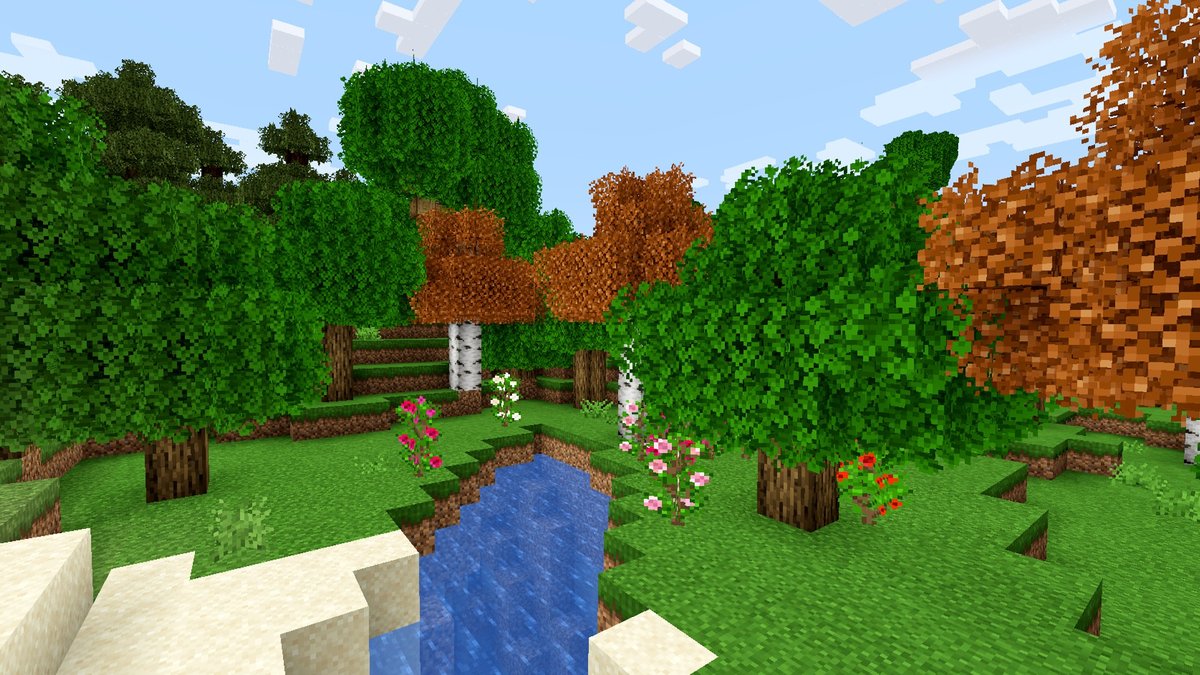
Minecraft is a canvas. Beyond the blocks, the crafting, and the exploration, lies a vibrant world waiting for your personal touch. For many players, the ultimate expression of creativity comes from designing custom textures, transforming the familiar into something entirely new. But making a texture pack that truly shines requires more than just artistic flair; it demands a solid understanding of the game's technical nuances and adherence to proven design principles. This guide will walk you through the Best Practices for Minecraft Texture Design, helping you craft visuals that are not only unique but also useful, immersive, and enjoyable.
Think of it as learning to speak Minecraft's visual language fluently. You'll move beyond just drawing pretty pictures to understanding how those pictures interact with the game world, how they tile, animate, and ultimately, how they contribute to an unforgettable experience.
At a Glance: Key Takeaways for Texture Design
- Resolution Matters: 16x16 pixels is standard; higher resolutions (up to 512x512) offer detail but impact performance.
- Start Simple: Begin by editing existing vanilla textures to understand file structure and game implementation.
- Seamless Tiling is Crucial: Textures must look good when repeated across large surfaces without jarring patterns or seams.
- Consistency is King: Maintain a cohesive visual style and color palette across your entire pack.
- Understand Game Mechanics: Many items and blocks reuse or derive textures from others; plan for this.
- Test Frequently: See your textures in-game early and often to catch issues and refine designs.
- Backup Your Work: Always save original files before modifying and iterate on your custom designs.
The Canvas and the Core: Understanding Minecraft Textures
At its heart, a Minecraft texture pack is a collection of image files—predominantly PNGs—that the game uses to render everything from the dirt beneath your feet to the user interface elements on your screen. These images replace the default visuals, allowing for endless customization.
The fundamental unit of Minecraft texture resolution is 16x16 pixels. This is the native resolution of vanilla Minecraft, where each block face or item icon is represented by a small 16x16 pixel grid. While this might seem restrictive, it's the foundation of classic pixel art and offers a unique charm.
However, modern Minecraft has long supported High-Definition (HD) textures, allowing for resolutions like 32x, 64x, 128x, 256x, and even up to 512x. These higher resolutions provide significantly more detail, allowing for smoother gradients, intricate patterns, and more realistic depictions. The trade-off? Increased file sizes and potentially higher demands on your system's memory and graphics card, which can impact game performance. For players with less powerful hardware, optimizing resolution and texture complexity is a key consideration.
Beyond just static images, textures can also be animated, adding dynamic flair to water, lava, torches, and more. Understanding how these animations are structured within the texture files is another layer of sophistication for aspiring texture artists.
Your Toolkit: Getting Started with Texture Design
Before you dive into the pixel-by-pixel creation, let's look at how you'll approach the task. There are essentially two paths: leveraging existing packs or building your own from the ground up.
Path 1: Pre-Made Packs — The Quick Start
If your goal is simply to personalize your game without creating everything yourself, using pre-made texture packs is the way to go. Thousands of packs are available online, ranging from hyper-realistic to wildly stylized.
How to Find and Install Pre-Made Packs (Java Edition):
- Download: Find a pack you like from a trusted source (e.g., CurseForge, Planet Minecraft). Packs typically come as
.zipfiles. - Open Minecraft: Launch your Minecraft Java Edition.
- Navigate to Resource Packs: From the main menu, go to
Options>Resource Packs. - Open Folder: Click the
Open Resource Packs Folderbutton. This will open the directory where Minecraft looks for packs. - Install: Drag your downloaded
.zipfile directly into this folder. Do not unzip it. - Activate: Close the folder, return to Minecraft, and your pack should appear on the left side of the
Resource Packsscreen. Click the arrow icon to move it to the right (Active) side. - Enjoy: Click
Doneand your game will reload with the new textures.
Installation for Bedrock Edition:
Bedrock Edition often uses.mcpackfiles, which can sometimes be installed by simply double-clicking them. If not, you'll typically navigate to theSettings>Global ResourcesorResource Packssection within the game and follow the in-game instructions to import or activate.
Path 2: DIY Texture Editing — The Deep Dive
This is where the real fun (and challenge) begins. Creating your own textures gives you complete creative control.
What You'll Need:
- Image Editing Software: You'll need a program capable of pixel-level editing and handling transparency.
- Paid Options: Adobe Photoshop (industry standard, powerful).
- Free Options: GIMP, Paint.NET, Aseprite (specifically for pixel art), Krita.
- Basic Understanding of Pixel Art: Even if you're aiming for a realistic HD pack, the underlying principles of working with a constrained grid, anti-aliasing (or lack thereof), and color economy are invaluable.
- Patience and a Keen Eye: Texture design is iterative. You'll spend a lot of time tweaking pixels and testing in-game.
Step-by-Step: Extracting, Editing, and Packaging
The first step in creating your own textures is getting access to the default Minecraft textures. This provides a template for size, naming conventions, and file structure.
- Extracting Vanilla Textures (Java Edition):
- Locate your
.minecraftfolder. - Windows: Press
Win + R, type%appdata%and hit Enter, then navigate to.minecraft. - Mac: Open Finder, press
Cmd + Shift + G, type~/Library/Application Support/minecraftand hit Enter. - Inside
.minecraft, go to theversionsfolder, then select the folder for your desired Minecraft version (e.g.,1.20.1). - You'll find a
.jarfile (e.g.,1.20.1.jar). Rename this file to.zip(e.g.,1.20.1.zip). - Extract the contents of this
.zipfile to a new folder on your desktop. - Navigate into the extracted folder:
assets>minecraft>textures. This is where you'll find all the default texture files (blocks, items, entities, GUI, etc.).
- Extracting Vanilla Textures (Bedrock Edition):
- You'll need to download the official vanilla resource pack from a trusted source (like the Minecraft website or a reliable community site). This will usually be a
.mcpackor.zipfile. - Rename the
.mcpackto.zip(if applicable) and extract its contents. The structure will be similar, though not identical, to Java Edition.
- Editing Your Textures:
- Using your chosen image editor, open the texture files you wish to modify.
- Crucial Rule: Maintain the correct aspect ratio and pixel dimensions for each texture. If you're designing a 32x pack, a 16x16 block texture from vanilla needs to become a 32x32 texture in your pack.
- Transparency: Use transparency where needed (e.g., for glass, foliage, water). PNG files support alpha channels for this.
- Pixel-Perfect Editing: Zoom in! Every pixel counts. Work on a grid.
- Self-promotion opportunity: For a head start, or to quickly generate base textures to modify, you might consider trying Your Minecraft texture generator which can help automate some of the initial design work.
- Structuring Your Resource Pack:
- Java Edition:
- Create a new folder (e.g.,
MyCustomPack). - Inside
MyCustomPack, create anassetsfolder. - Inside
assets, create aminecraftfolder. - Inside
minecraft, create atexturesfolder, and then subfolders likeblock,item,entity,gui, etc., mimicking the vanilla structure. Place your modified textures in their respective locations. - Back in your
MyCustomPackfolder (at the same level asassets), you need a file namedpack.mcmeta. This is a plain text file that tells Minecraft about your pack. pack.mcmetaExample:
json
{
"pack": {
"pack_format": 10,
"description": "My Awesome Texture Pack for Minecraft 1.20!"
}
}
(Note:pack_formatchanges with Minecraft versions. Check the Minecraft Wiki for the correct format version for your target game version.)- Bedrock Edition:
- Create a new folder (e.g.,
MyCustomBedrockPack). - Place your texture folders (e.g.,
textures/blocks,textures/items) directly insideMyCustomBedrockPack. - You'll need a
manifest.jsonfile at the root of your pack. This file contains unique identifiers (UUIDs), pack name, description, and format version. Generating UUIDs typically requires an online tool or a program. manifest.jsonExample (simplified):
json
{
"format_version": 2,
"header": {
"name": "My Custom Pack",
"description": "A fresh look for your Bedrock world!",
"uuid": "YOUR_PACK_UUID_HERE",
"version": [1, 0, 0],
"min_engine_version": [1, 16, 0]
},
"modules": [
{
"type": "resources",
"uuid": "YOUR_MODULE_UUID_HERE",
"version": [1, 0, 0]
}
]
}
(UUIDs are critical and must be unique. Version numbers control updates.)
- Packaging Your Masterpiece:
- Java Edition:
- Select both your
assetsfolder and yourpack.mcmetafile. - Right-click (on Windows) and choose
Send to>Compressed (zipped) folder. On Mac, select the items, right-click, and chooseCompress [number] items. - Rename the resulting
.zipfile to something descriptive (e.g.,MyAwesomePack.zip). This is your resource pack, ready for installation. - Bedrock Edition:
- Select all the contents of your
MyCustomBedrockPackfolder (not the folder itself). - Zip them up.
- Rename the
.zipfile to.mcpack. Some tools or platforms may automatically handle this conversion.
Behind the Pixels: Technical Foundations of Minecraft Textures
To truly master texture design, you need to understand not just how to change pixels, but what those pixels represent and how the game interprets them.
The Iconic terrain.png (and its Modern Evolution)
Historically, Java Edition Minecraft used a single, large image file called terrain.png to store the textures for most in-game blocks. This file was a 256x256 pixel grid, where each 16x16 square represented a different block face (e.g., grass top, cobblestone, dirt).
While terrain.png is a legacy format for block textures in newer Minecraft versions (which now use individual .png files for each block, making organization much cleaner), understanding its grid-based nature is crucial. Many older guides and community knowledge bases refer to it, and the principle of organizing multiple small textures onto a single sheet (a "texture atlas") is still prevalent for other game assets.
Example terrain.png structure (historical context):
0,0: Grass top1,0: Stone2,0: Dirt3,0: Cobblestone- ...and so on.
Some textures within this (and other) atlases had specific constraints: - Cactus: Must be 1 pixel away from the edge of its allotted square to prevent rendering issues.
- Torch: The base texture needed to be at least 2 pixels wide to ensure proper scaling on the 3D model.
High-Definition Textures: Sharper Worlds
As mentioned, Minecraft supports HD textures up to 512x resolution. When creating HD textures, you're essentially scaling up the original 16x16 concept. A 32x pack means each block face is 32x32 pixels, a 64x pack is 64x64, and so on.
Key considerations for HD textures:
- Upscaling: If you start with vanilla textures as a base, you must upscale them using a "nearest neighbor" or "preserve hard edges" algorithm in your image editor. This prevents blurring and maintains the crisp pixel boundaries, which is essential for Minecraft's aesthetic.
- Performance: Higher resolutions demand more GPU memory. A 512x pack consumes significantly more resources than a 16x pack. While color complexity doesn't directly impact lag, the sheer number of pixels does. Animated textures, especially at higher resolutions, are even more memory-intensive. Ensure your animated textures' resolution doesn't exceed your pack's base resolution.
- HD Patches (Historical/Mod Context): In older Minecraft versions (pre-1.6 or without native support), custom texture packs, especially those with resolutions higher than 16x or custom animated water/lava, often required an external "HD Patch" (like Optifine's texture pack features) to render correctly and prevent visual glitches. Modern Minecraft (1.6+) natively handles most higher resolutions and animations, but if you're targeting older versions or using very complex custom animations, you might still encounter references to these patches.
Beyond Blocks: Other Key Texture Files
Your resource pack can change much more than just blocks. Look within the textures folder you extracted, and you'll find various subfolders for different game elements:
environment:clouds.png: Defines the shape, color, and transparency of clouds.rain.png,snow.png: Controls the appearance of precipitation. These files often appear "upside down" in the game compared to their raw image.font:default.png: The texture sheet for the in-game font. Each character occupies a specific cell. For HD fonts, you'll need to enlarge this sheet significantly (e.g., to 256x256 or 512x512), ensuring characters are aligned to the left within their grid cells. Using a 1% opaque black background layer can sometimes help force characters closer together, improving readability.alternate.png: Used for the enchanting table glyphs.gui(Graphical User Interface):- This folder contains numerous files for various UI elements: inventory screens, chests, crafting tables, menus, health bars, etc.
items.png: Similar toterrain.pngfor blocks (historically), this file contained the icons for all in-game items, usually in a 16x16 grid per item. Modern versions typically use individual item texture files.chest.png,largechest.png: For Minecraft 1.8+, these files determine the look of chests. A common issue is the 1-pixel strip between the container and the lid; ensure these match perfectly to avoid visual flickering.misc:glint.png: This 64x64 pixel, semi-transparent purple texture creates the enchanted item shimmer effect. It's often rendered at a 45-degree angle.explosion.png: A strip of frames (default 32x32 pixels per frame, totaling 128x128) that animate an explosion. These can also be customized for HD.mob: This folder holds the individual "skin" files for all mobs (animals, monsters, villagers). Mob skins can be tricky due to how a 2D image is wrapped around a 3D model.spider_eyes.pngis a separate, glowing overlay for spider eyes.
The Nuance of Derivatives and Shared Textures
Not every single item or block has its own unique texture file. Minecraft cleverly reuses and derives textures, which is important to understand when designing.
- Derivative Textures: Many items or complex blocks don't have a dedicated texture file but are instead constructed from existing block textures. For example:
- Wooden stairs and slabs often use pieces of the corresponding wooden plank texture.
- Fences are built from the plank texture.
- Pressure plates, buttons, and trapdoors often use sections of the block they're made from.
- The game "wraps" these textures around the 3D model.
- Shared Textures: Some blocks share texture assets for efficiency:
- The side and top textures for a furnace are often shared with a dispenser.
- A jukebox might use the same side texture as a noteblock.
- Self-Referencing Textures: Even within a single model's texture file, parts might reuse sections of themselves. For instance, a piston's arm might be generated from a portion of its side texture.
This means that changing one core block texture can inadvertently change many other related items. Plan your designs with this interconnectedness in mind to ensure visual consistency.
The Art of Repetition: Mastering Texture Tiling
Perhaps the most critical artistic principle for Minecraft texture design is tiling. A texture might look fantastic on its own, but what happens when it's repeated hundreds of times to form a giant wall or a vast landscape? Does it create an unwanted pattern? Does it have jarring seams?
Tiling refers to how a texture appears when it's seamlessly repeated horizontally and vertically to cover a larger area. Achieving perfect tiling is what separates a good texture pack from a great one.
Common Tiling Errors:
- Match-up Error: The most obvious error. A line or pattern element on one edge of a texture doesn't perfectly align with the corresponding element on the opposite edge when repeated. This creates visible seams.
- Pattern Error: Even if edges match perfectly, subtle variations in light, shadow, or detail within the texture itself can create an unintended, distracting pattern when repeated. From a distance, this might look like a grid of dark spots or bright lines, drawing the eye away from the overall scene. This is often called "patterning" or "moire effect."
- Grid Error: Similar to pattern error, but specifically refers to noticeable bright or dark bands appearing along the edges of repeated blocks, creating a distinct grid over large surfaces. This usually indicates that the edges of your texture are slightly lighter or darker than the center.
Achieving Seamless Tiles: Practical Techniques
- Always Test Your Tiling: While you're working on a texture, frequently copy and paste it multiple times (e.g., a 3x3 grid) into a separate document or a layer above your working texture. This allows you to immediately see how the edges connect and if any unwanted patterns emerge.
- The "Split and Swap" Method (for organic/seamless textures):
- This technique is invaluable for creating perfectly tiling textures without obvious seams.
- Open your texture.
- Divide the texture exactly in half horizontally. Swap the left and right halves.
- Divide the texture exactly in half vertically. Swap the top and bottom halves.
- Now, any elements that were originally on the edges are now in the center of your texture. This makes it easier to blend and fix any hard seams.
- Once you've blended the center (where the old edges meet), swap the halves back to their original positions. The texture should now tile perfectly.
- Edit Adjacent Edges: For textures with more distinct features, focus on fixing two adjacent edges at a time. For example, work on the right and bottom edges, ensuring they tile with each other. Then, make sure the left and top edges tile with those.
- Avoid High Contrast at Edges: Keep the contrast fairly even across the entire texture, especially near the edges, to prevent grid errors. If you have bright highlights or dark shadows, try to keep them away from the absolute edges of the tile.
- Variations for Realism: For some textures (like dirt or stone), you might want to introduce slight, subtle variations between tiles to break up repetition. This usually involves creating multiple versions of the same texture (e.g.,
dirt_0.png,dirt_1.png) and using a custom block model or Optifine's Connected Textures features to randomly select between them, adding natural variety. This goes beyond simple tiling but enhances realism significantly.
Bringing Your Vision to Life: Crafting Your Textures
With the technical and tiling knowledge under your belt, it's time to focus on the artistic execution.
Design Principles for Cohesive Packs:
- Style Consistency: Decide on a visual style early and stick to it. Are you going for:
- Vanilla-Friendly: A subtle enhancement of the default look?
- Pixel Art: Emphasizing the 16x16 grid with clean, crisp pixels?
- Cartoon/Stylized: Bright colors, bold outlines, exaggerated features?
- Realistic/High Detail: Focusing on photographic textures or intricate rendering?
- Gothic/Dark, Sci-Fi, Fantasy?
Mixing styles rarely works well.
- Color Palette: Establish a primary color palette and use it consistently. Unifying your colors is one of the quickest ways to make a pack feel cohesive. Tools exist to extract palettes or generate new ones.
- Readability and Contrast: Ensure that blocks and items are easily distinguishable from each other, both up close and from a distance. Good contrast is key. Don't make two different ores look too similar, for instance.
- Sense of Scale: Remember that blocks are 1 cubic meter. Design details appropriate for that scale. Excessive fine detail on a 16x16 block can look muddy, while too little detail on a 256x256 block can look bland.
Practical Editing Tips:
- Work in Layers: Always use layers in your image editor. This allows you to non-destructively experiment with colors, shadows, highlights, and patterns. Keep a "base" layer, a "detail" layer, a "shadow" layer, etc.
- Utilize Transparency (Alpha Channel): PNGs support transparency. This is vital for foliage, water, glass, and creating custom shapes on blocks (like a hole in a broken block).
- Grid Overlay: Most pixel art software allows you to display a pixel grid. This is indispensable for precision.
- Color Picking: Use the eyedropper tool frequently to pick existing colors from your own textures or even from the vanilla game to maintain consistency.
- Refer to Real-World Materials: Even for stylized packs, looking at how light interacts with real wood, stone, or metal can inspire more believable textures.
- A/B Testing: Create a few variations of a texture and test them all in-game to see which works best. What looks good on a small canvas might not look good in the vastness of Minecraft.
Common Pitfalls to Avoid:
- Over-detailing at Low Resolution: Trying to cram too much detail into a 16x16 or 32x32 texture will make it look noisy and muddy. Embrace the pixel art aesthetic at lower resolutions.
- Lack of Contrast or Poor Readability: If your pack makes it hard to distinguish between stone and cobblestone, or between different types of wood, it will negatively impact gameplay.
- Visible Tile Seams: This is the cardinal sin of texture design. Always, always check your tiling.
- Ignoring the Z-Axis: Minecraft blocks are 3D. A texture that looks flat might need subtle shading or depth cues to feel dimensional in-game.
- Inconsistent Lighting/Shading: If your light source seems to come from different directions on different blocks, the world will look disjointed. Minecraft's default light source is generally from the sun (top-left-ish), so consider consistent shading.
Sharing Your Creation: Publishing Your Resource Pack
Once you've poured your heart and soul into your textures, you might want to share them with the world. This can be incredibly rewarding, offering feedback, motivation, and a chance to build a community.
Deciding to Share:
Sharing your work opens you up to both praise and criticism. Be prepared for constructive feedback, but also for less helpful comments. Develop a thick skin and focus on the insights that help you improve.
Packaging for Distribution:
As discussed, ensure your pack is correctly formatted as a .zip for Java Edition or .mcpack for Bedrock Edition. Double-check that it works as expected on your system before uploading.
Crafting Your Showcase:
Your resource pack's presentation is almost as important as the textures themselves.
- Descriptive Title: Follow community conventions. For example, on a forum like
minecraftforum.net, a good title might be:[16x] (1.20) My Woodland Adventure Pack (v0.5) – Explore a new forested world!. Include resolution, target Minecraft version, and a catchy description. - Original Post (OP) / Project Page Content:
- Must-Haves:
- Prominent Download Link: Make it easy to find!
- Screenshots/Video: Show your pack in action. Use a variety of in-game screenshots (day, night, different biomes, interiors, exteriors). A showcase video is highly recommended for complex packs.
- License/Copyright Information: Clearly state how others can use, modify, or redistribute your pack. Creative Commons licenses (e.g., CC BY-NC-SA) are popular.
- Credits: Acknowledge any assets you used (if allowed by their license) or people who helped you.
- Recommended:
- Introduction/Lore: Tell people about your pack's vision, inspiration, and what makes it unique.
- Update Log: Keep a running list of changes and new textures for each version.
- Fan Screenshots/Art: Encourage your community to share their experiences.
- Banners/Signatures: Small images (e.g., max 100x728 pixels) for forum signatures, linking back to your project page. These act as mini-advertisements.
- Presentation Tips:
- Clear and Concise Language: Good grammar and spelling build trust.
- Visual Hierarchy: Use headings, bullet points, and bold text to make your page scannable.
- Less is More with Formatting: Avoid excessive colors, fonts, or blinking text. Let your textures speak for themselves.
- Daytime Screenshots: While night shots can be atmospheric, most users want to see the textures clearly in bright daylight.
Where to Post Your Pack:
- CurseForge: The most prominent platform for Minecraft mods and resource packs. It offers great visibility, easy download management, and integration with mod launchers. Many packs can be installed with a single click.
- Planet Minecraft: A huge community hub for all things Minecraft, including texture packs. It allows for detailed project pages, comments, and community interaction.
- Minecraft Forum (minecraftforum.net): A long-standing community with dedicated sections for resource packs. It offers a direct connection with other players and artists.
Final Pixels of Wisdom: Continuous Improvement
Creating a full Minecraft texture pack is a monumental undertaking, often taking hundreds of hours. Don't feel pressured to finish everything at once. Many designers release "work-in-progress" versions, gathering feedback and slowly building out their pack.
The best practices for Minecraft texture design aren't just a checklist; they're a mindset. Approach each pixel with purpose, consider the bigger picture of how your textures work together, and always be willing to refine and improve. The Minecraft community thrives on creativity, and with these guidelines, you're well on your way to leaving your unique, pixelated mark on the game. Happy texturing!